
In this Article
- Key Takeaways: Your Digital Organization Strategy
- The Hidden Cost of a Cluttered Downloads Folder
- Building Your Master Folder Hierarchy
- The Power of Consistent File Naming
- Using Tags and Metadata for Quick Retrieval
- Cloud Storage vs. Local Drives: Scope and Limitations
- Routine Maintenance and the 3-2-1 Backup Rule
Key Takeaways: Your Digital Organization Strategy
Digital printable organization works best when you stop treating every file like a tiny emergency.
Start with the biggest buckets you actually search by: project type, theme, season, or use. Then rename files so your computer can find them without a treasure map. After that, decide what needs fast local access and what can live in cloud storage or an archive drive.
- Build a top-down master folder hierarchy with 3 to 7 first-pass folders, such as Coloring Pages, Planners, SVG Cut Files, Kids Activities, and Commercial Use.
- Use a strict file name pattern: YYYY-MM-DD_Theme_Creator_FileType.
- Keep current projects close, but do not trust one cloud folder or one external drive as your whole safety plan.
- Make cleanup recurring, small, and boring. Boring is where the magic markers stop rolling under the couch.
Summary: Your system does not need to be fancy. It needs to help you find the Easter bunny coloring page, the commercial-use SVG, or the weekly planner insert before your coffee gets cold.
The Hidden Cost of a Cluttered Downloads Folder
I have watched a perfectly good craft afternoon fall apart over a file named download.pdf.
The crafter knew she had bought the printable planner insert. She remembered the preview image, the beige tabs, the little checkbox layout. But the original ZIP sat buried in Downloads under a default transaction name, and the usable PDF had landed somewhere else. Ten minutes later, she was back at the shop page, ready to buy the same thing again because searching felt harder than spending a few dollars.
That is the quiet cost of clutter: repurchased assets, missed project deadlines, and a little puff of creative frustration every time you open your laptop.
Start with the mess you can see
A practical audit begins in the places where files naturally pile up: Downloads, Desktop, browser download history, and any folder named New Folder, Sort Later, or To Print. Those folders tell the truth. If you see files named printable-final.zip, coloring-page-1.png, license.txt, and spring.pdf with no folder context, you are not disorganized as a person. You are using a system that never got finished.
Review the last 6 to 18 months of creative downloads first. Those files are most likely to connect to current holidays, classroom activities, shop listings, and client work. Older archives can wait politely in the corner.
Shift from saving to archiving
The old habit says, Save it anywhere, I will remember. The new habit says, Save it to an inbox, then give it a home.
Create one holding folder called /Inbox - To Sort. New downloads go there first, not into the final folder tree while you are still in browser-tab chaos. During your maintenance session, you can decide what deserves a permanent place.
Building Your Master Folder Hierarchy
Your master folders should match the way you choose projects. Not the way a marketplace names products. Not the way a ZIP bundle arrives. Your brain is the boss here.
For most printable collections, project type makes the cleanest first layer. A crafter usually thinks, I need a coloring page, or I need an SVG for a T-shirt, before thinking about the creator. Creator folders matter later when licensing, attribution, or shop sourcing comes into play.
A workable starter tree
Here is a folder structure I would happily hand to someone with a Wacom tablet, a pile of kids crafts, and a Downloads folder that has seen things:
- /Printables/Coloring Pages/Animals
- /Printables/Coloring Pages/Holidays
- /Printables/Planners/Weekly
- /Printables/SVG Cut Files/T-Shirts
- /Printables/Kids Activities/Rainy Day
- /Printables/Commercial Use
- /Printables/Inbox - To Sort
Keep active folders 2 to 4 levels deep. /Printables/SVG Cut Files/Halloween/Ghosts still feels friendly. Once you add Cute, Black-and-White, Version-2, and Downloaded-Monday, you have built a hallway with too many doors.
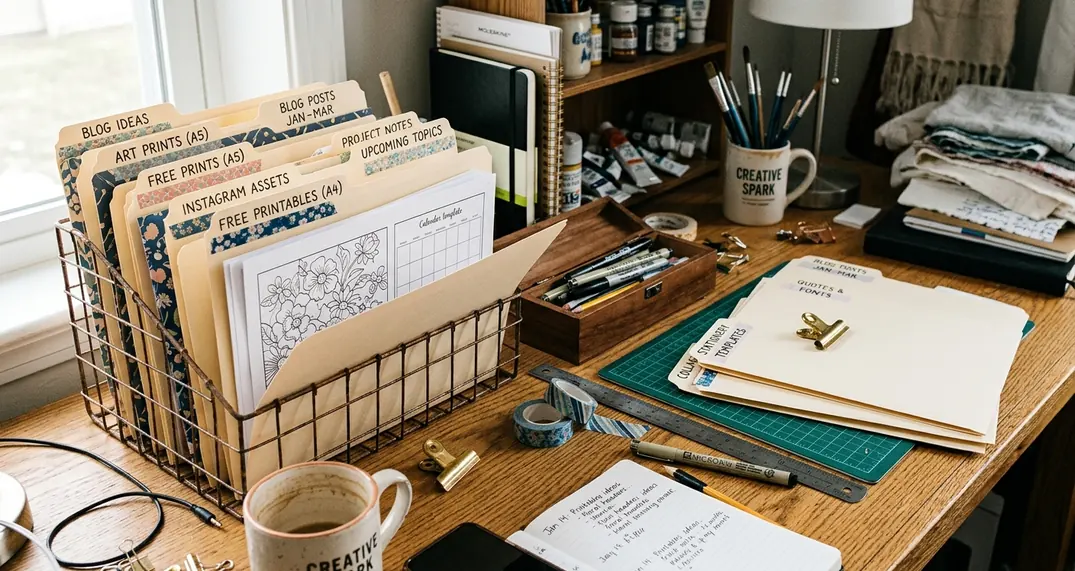
Seasonal archives can bend the rules
If your projects revolve around classroom calendars or holiday batches, month ranges can help. Try Spring March-May, Summer June-August, Autumn September-November, and Winter December-February. That approach works especially well for seasonal craft archives where the question is not What type of file is this? but What time of year will I need it?
If you collect educational printables from sources such as Sesame Workshop, the educational organization, keep those in the project type folder first. Then use a creator or source subfolder only when attribution or license tracking matters.
Quick Tip: Do not sort every ancient file on day one. For a first cleanup, process files downloaded from 2024-01-01 through 2025-12-31 before touching older archives.
The Power of Consistent File Naming
A folder gets you close. A good file name gets you there.
Default download names rarely carry enough meaning. A file named spring.pdf could be a planner cover, a floral coloring page, a classroom worksheet, or a commercial-use art print. When dozens of spring-themed downloads share that same foggy label, search becomes a guessing game.
Rename after you place the file
Put the file in the correct folder first, then rename it. That order keeps you from polishing files you might delete, and it helps you name from context. If a ZIP bundle includes PDF, PNG, SVG, DXF, and license documents, preserve the original ZIP when licensing or bundled formats matter. Extract the files you actually use into the project folder, then rename those working copies.
Use this formula:
YYYY-MM-DD_Theme_Creator_FileType
For example:
- 2025-03-18_Easter-Bunny_StudioName_PDF
- 2025-10-04_Halloween-Cat_ArtistInitials_SVG
- 2025-06-12_Summer-Bucket-List_Creator_PDF
- 2025-11-20_Thanksgiving-Place-Cards_Creator_PDF_Commercial-License
Use hyphens inside multiword themes and underscores between fields. It looks picky until you search Halloween Cat SVG and your computer behaves like a helpful little raccoon instead of a locked filing cabinet.
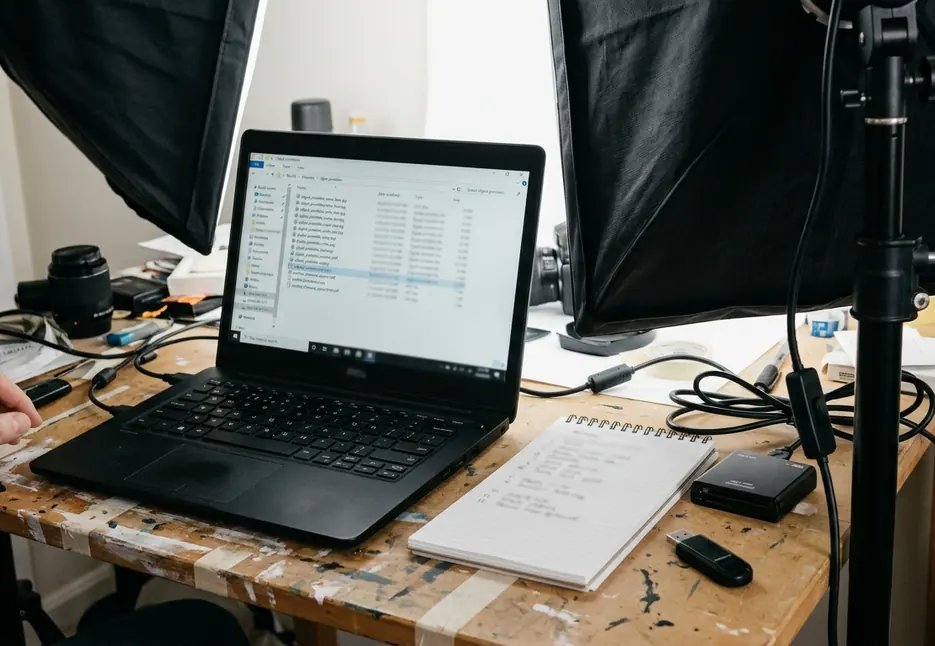
Let search do the heavy lifting
Stanford Libraries offers a clear primer on standardized file naming conventions, and the same principle applies beautifully to printables: consistent names make files easier to sort, scan, and retrieve.
Bulk rename in batches of roughly 20 to 40 files per session. Bigger batches invite mislabeling, especially when you are staring at a row of similar pumpkin SVGs. For an archive covering 2024-01 through 2025-12, rename the newest or most-used folders first before dealing with sleepy old material.
Using Tags and Metadata for Quick Retrieval
Tags are not the foundation. They are the glitter layer.
Add tags after folder placement and filename cleanup. When tags become the main structure, they usually turn into a confetti cannon: pretty, everywhere, and hard to clean up. Used sparingly, they let one printable appear in several search paths without duplicating the file.
Use tags for cross-cutting needs
A printable can live in /Printables/Kids Activities/Animals and still carry tags for Rainy Day, Classroom, and To Print. You keep one file, but you gain several ways to find it.
Useful crafter tags include:
- Kids Crafts
- Adult Coloring
- Commercial License
- Personal Use Only
- To Print
- Printed
- Classroom
- Low Ink
- SVG
- Giftable
Color labels and properties
On one common desktop operating system, color labels can mark workflow status: red for Needs License Review, yellow for To Print, and green for Ready to Use. On another, file properties and comments fields can hold search terms like commercial license, 8.5x11, A4, or black-and-white.
A simple rule helps here: review tags every 3 to 6 months. Retired labels such as Old Shop Project or 2024 Fair Prep can crowd the current filters if you never prune them.
Note: Do not tag your way around weak file names. A clear name still does the sturdier work.
Cloud Storage vs. Local Drives: Scope and Limitations
Cloud storage is handy. Local drives are handy. Neither one deserves the crown and tiny velvet cape.
Split storage by access need and loss tolerance. Keep current-month projects, files needed for open shop listings, and items scheduled to print within the next 1 to 30 days on local storage. Those are the files you do not want trapped behind slow internet or a surprise sync tantrum.
Where cloud storage helps
Cloud storage suits completed seasonal projects and older purchases after you have sorted, renamed, and checked the license documents. It keeps archives off your main device and gives you access from more than one place. The trade-offs are real: sync issues, subscription costs, and offline access problems can pop up at exactly the wrong moment.
Before you delete a local copy, confirm the file appears in the cloud folder, opens successfully, and includes the license file. A folder name alone is not proof that the backup is usable.
Where local drives help
External drives work well for large design bundles, especially when they include layered design files, PDFs, PNG previews, SVG cut files, and license documents. Store the complete bundle when future editing or proof of terms matters.
The weak spot is physical reality. Drives can fall, fail, disappear into a drawer, or refuse to mount after a long nap. Test external-drive access every 60 to 90 days by opening several files from different folders, not just checking that the drive icon appears.
A hybrid setup gives you the best shot: active files local, sorted archives in cloud storage, and irreplaceable business assets backed up in more than one place. It is not foolproof, but it is much sturdier than hoping one magical folder handles everything.
Routine Maintenance and the 3-2-1 Backup Rule
Organization is not a one-time makeover. It is more like watering a plant you occasionally forget exists.
Run your maintenance routine about once a month, tied to a recurring calendar block rather than a mood-based cleanup spiral. A 15- to 25-minute session is enough if you keep the loop tight.
Monthly Digital Printable Maintenance Checklist
- Open Downloads, Desktop, and /Printables/Inbox - To Sort.
- Delete obvious duplicates only after confirming the better-named copy opens.
- Move files into the correct master folder: Coloring Pages, Planners, SVG Cut Files, Kids Activities, or Commercial Use.
- Rename new files with the YYYY-MM-DD_Theme_Creator_FileType pattern.
- Add helpful tags, especially license, workflow, print size, or classroom-use terms.
- File the license document beside the asset.
- Confirm backups before clearing local copies.
Use 3-2-1 for creative assets
The 3-2-1 backup rule means 3 copies, 2 different storage types, and 1 copy stored off the main device. For business-use printables, keep the asset, preview image, editable source file if supplied, proof of purchase, and license document in the same project folder.
Run a restore test every few months. Copy one archived printable back to your working device and open the actual file. That tiny test tells you more than a perfectly named archive folder ever will.
Miss a month? Fine. Skip the guilt parade. Open the inbox, sort the newest files, and keep going. The goal is not a museum-quality folder system. The goal is to find what you need quickly enough to keep making cute, useful things.












Join the Conversation
Nothing here yet. Add your opinion.
Add Your Thoughts